
Camera: Difference between revisions
>Abcboy mNo edit summary |
>Abcboy mNo edit summary |
||
| (4 intermediate revisions by 2 users not shown) | |||
| Line 1: | Line 1: | ||
{{Item Infobox | {{Item Infobox | ||
|Name=Camera | |Name=Camera | ||
|Image=Camera.png | |Image=Camera Big.png | ||
|Category=Tool | |Category=Tool | ||
|Use=Photography | |Use=Photography | ||
| Line 13: | Line 12: | ||
==Appearance== | ==Appearance== | ||
In a [[ | In a [[blockhead]]'s inventory, a camera appears as a brown, box-like oblong with a dark cylinder at the center representing a lens. | ||
==Where Found== | ==Where Found== | ||
A | A blockhead can [[Crafting|create]] a camera at a level 2 [[Craft Bench|craft bench]] using one [[wood]] and one [[glass]]. | ||
{{Craft | {{Craft | ||
|Output=Camera | |Output=Camera | ||
|Name1=Glass | |Name1=Glass | ||
|Name2=Wood | |Name2=Wood | ||
|Bench= | |Level=2 | ||
|Bench=Craft Bench | |||
|Qty1=1 | |Qty1=1 | ||
|Qty2=1 | |Qty2=1 | ||
|QtyOutput=1 | |QtyOutput=1 | ||
|Time2=4 | |||
}} | }} | ||
==Using== | ==Using== | ||
To take a picture, a | To take a picture, a blockhead must have a camera in its [[inventory]]. Selecting the camera will cause a "Take Picture" button appear over the blockhead. Tapping that button will put the game into picture-taking mode. | ||
In picture-taking mode, most user interface features disappear, leaving the world display, a pair of buttons, and some text across the top describing how to set up the picture. The view can be scrolled around and/or zoomed in and out until the desired picture is set up. Tapping the larger "camera" button saves a picture of the current display (without the buttons or text) to the device's photo storage. Tapping the smaller "Cancel" button takes the game out of picture-taking mode. | In picture-taking mode, most user interface features disappear, leaving the world display, a pair of buttons, and some text across the top describing how to set up the picture. The view can be scrolled around and/or zoomed in and out until the desired picture is set up. Tapping the larger "camera" button saves a picture of the current display (without the buttons or text) to the device's photo storage. Tapping the smaller "Cancel" button takes the game out of picture-taking mode. | ||
Latest revision as of 13:21, 1 September 2014
| Camera | |
|---|---|
 | |
|
| |
| Category | Tool |
| Use | Photography |
| Tool | |
| Stackable | Yes (99) |


- "Take and share photos."
A camera is a special tool for taking pictures of a world.
Appearance
In a blockhead's inventory, a camera appears as a brown, box-like oblong with a dark cylinder at the center representing a lens.
Where Found
A blockhead can create a camera at a level 2 craft bench using one wood and one glass.
|
|


Using
To take a picture, a blockhead must have a camera in its inventory. Selecting the camera will cause a "Take Picture" button appear over the blockhead. Tapping that button will put the game into picture-taking mode.
In picture-taking mode, most user interface features disappear, leaving the world display, a pair of buttons, and some text across the top describing how to set up the picture. The view can be scrolled around and/or zoomed in and out until the desired picture is set up. Tapping the larger "camera" button saves a picture of the current display (without the buttons or text) to the device's photo storage. Tapping the smaller "Cancel" button takes the game out of picture-taking mode.
One feature of picture-taking mode is that time "stops" in single player. Animals don't move and the sky doesn't progress.
Pictures taken with a camera instead of a screen capture do not include any user interface buttons, icons, menus, or windows. They can also be adjusted to a wider range of zoom levels, not just the three standard display levels, as well as being able to zoom in farther. They seem to have the same maximum zoom out.
Cameras do not wear out.
Gallery
-
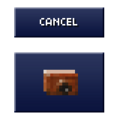 Buttons for "picture mode"
 -
 Instruction text

